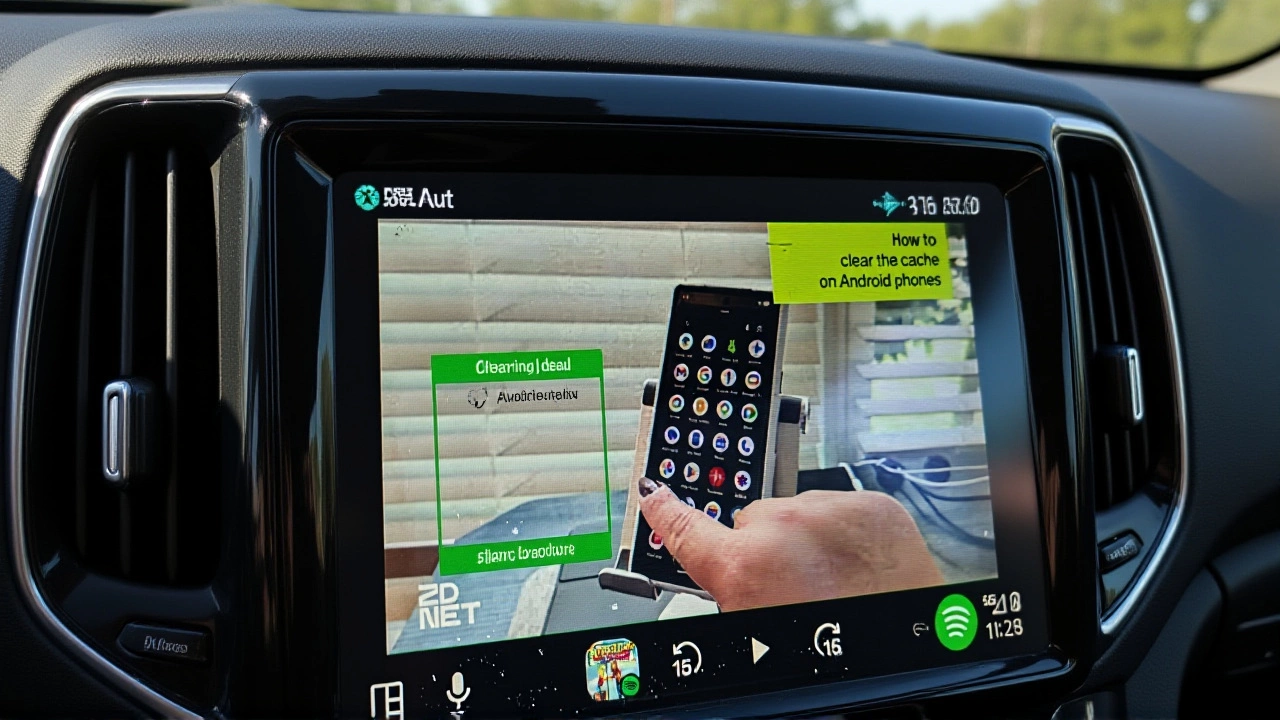
Google’s strict rules for Android Auto keep your car screen safe but boring. That’s why tech enthusiasts are bypassing the official store to install powerful, unofficial apps that turn their dashboards into media hubs. By using a simple sideloading tool called Android Auto Apps Downloader (AAAD), drivers can now access YouTube, local video files, and live TV directly on their car displays—without needing to root their phones.
The process isn’t as scary as it sounds. It involves enabling developer modes on both your phone and the Android Auto app itself, then granting permission to install apps from "unknown sources." Once set up, you get access to tools like CarStream and Fermata Auto, which offer features Google deliberately blocks for safety reasons. Here’s how to do it safely, what these apps actually do, and whether the risks are worth the reward.
How to Enable Developer Mode for Sideloading
Before you can install any unofficial software, you need to unlock the back door of your Android system. This doesn’t mean hacking; it just means telling your phone you trust yourself enough to manage advanced settings. The first step is activating general developer mode on your device.
Open your Settings app and scroll down to About Phone. Find the Build Number entry. Tap it seven times in quick succession. You’ll see a counter counting down, and after the seventh tap, a message will confirm you’re now a developer. Simple enough, right? But wait—that’s only half the battle.
You also need to enable developer options specifically within the Android Auto application. Go back to Settings, search for Android Auto, and open it. Scroll down to Additional settings and find the Version number. Tap this ten times. Yes, ten. Not seven. It’s easy to mix them up, so pay attention. Once done, you’ll see a new option appear: Unknown sources. Toggle this switch on. This is the critical gatekeeper that allows non-Play Store apps to run on your car’s screen.
Installing the Android Auto Apps Downloader (AAAD)
With the gates open, you need a vehicle to drive through them. Enter Android Auto Apps Downloader (AAAD). Think of AAAD as an unofficial app store dedicated entirely to Android Auto compatibility. It’s not made by Google, and it won’t show up in the Play Store. Instead, you download its APK file directly from its website.
Navigate to the AAAD download page and look for the Go Download button, usually located about halfway down. Once the .apk file downloads, install it like any other app. Now, here’s the catch: the free version of AAAD lets you download only one app every 30 days. If you plan to experiment with multiple tools, the Pro version costs just $4. For most users, that small fee is worth the convenience of unlimited installs.
Car Tech Studio notes that AAAD works without rooting your device, which is a huge plus. Rooting voids warranties and can brick your phone if done incorrectly. AAAD keeps things safer by working within the existing permissions structure, provided you’ve enabled those developer settings correctly.
Top Unofficial Apps: CarStream and Fermata Auto
So, what can you actually do with these unlocked capabilities? Two apps stand out from the crowd based on recent testing by ZDNET editors.
First up is CarStream. If you’ve ever wanted to watch YouTube videos while parked—or perhaps listen to audio-only streams while driving—this is your go-to. CarStream integrates YouTube directly into the Android Auto interface. It’s described as the "optimal choice" for anyone eager to bypass Google’s ban on video playback in cars. Just remember: watching video while moving is illegal and dangerous in most jurisdictions. Use this responsibly.
Then there’s Fermata Auto. If you only install one unofficial app, make it this one. Fermata is a comprehensive media toolkit. It lets you play music and videos stored locally on your phone, mirror your entire phone screen to the car display, and even stream live television via IPTV links. It’s versatile, powerful, and surprisingly stable. For audiophiles who want to play high-quality FLAC files from their local storage without cloud buffering, Fermata is a game-changer.
Safety First: The Red Flag Tests
Adding more features to your car screen sounds great until you realize you’re staring at a complex menu while merging onto a highway. Safety remains the primary reason Google restricts Android Auto. Even with unofficial apps, you should apply strict usability tests before trusting them on the road.
The Rokform blog suggests three critical checks for any Android Auto app:
- The Squint Test: Can you understand the button or icon in a split-second glance? If you have to read small text, it fails.
- The 'Hey Google' Test: Can you control the app entirely with voice commands? If you need to touch the screen to change songs or skip tracks, it’s a risk.
- The Tunnel Test: Does the app work offline? If it relies on streaming data, it might fail when you lose signal in tunnels or rural areas.
Apply these tests to CarStream and Fermata. While they offer incredible functionality, they often require visual interaction. Keep them for parking lots, charging stops, or stationary use. Don’t let convenience compromise safety.
Advanced Tweaks and Community Hacks
For the truly tech-savvy, sideloading is just the beginning. The /e/OS community forum shares methods for running Android Auto without any Google services at all. This involves using ADB (Android Debug Bridge) commands to install "stub" versions of Google Maps and Google Text-to-Speech. These stubs trick the system into thinking Google apps are present, allowing Android Auto to launch without bloatware.
One user shared a command to remove preinstalled navigation apps like Magic Earth to prevent conflicts: `pm uninstall -k --user 0 com.generalmagic.magicearth`. Then, they reinstall the official Play Store version via App Lounge. This level of customization is risky and requires USB debugging and computer connectivity, but it demonstrates how deep the rabbit hole goes for those seeking a pristine, ad-free Android Auto experience.
Frequently Asked Questions
Do I need to root my phone to use unofficial Android Auto apps?
No, you do not need to root your device. Tools like Android Auto Apps Downloader (AAAD) allow you to sideload apps by simply enabling developer options and allowing "unknown sources" in your settings. Rooting is unnecessary and carries higher risks, including voiding your warranty.
Is it legal to watch YouTube on Android Auto while driving?
Watching video content while driving is illegal in most regions and extremely dangerous. Apps like CarStream are intended for use when the vehicle is parked or stationary. Always prioritize safety and adhere to local traffic laws regarding distracted driving.
What happens if I update my phone's OS after sideloading apps?
Major Android updates sometimes reset developer settings or block previously installed unofficial apps. You may need to re-enable developer mode and reinstall AAAD or your specific apps after a significant system update. Always check compatibility notes before updating.
Why does AAAD cost $4 for the Pro version?
The free version of AAAD limits you to one app download every 30 days. The $4 Pro version removes this restriction, allowing unlimited downloads. This fee supports the developer who maintains the tool and ensures it stays compatible with changing Android Auto policies.